YouTuber's Guide
Order, download, mix, upload. Every step, start to finish.
A. Order your translation
1
Start a project
- Log in
- Pick Voice Actor or AI Voice (your own voice)
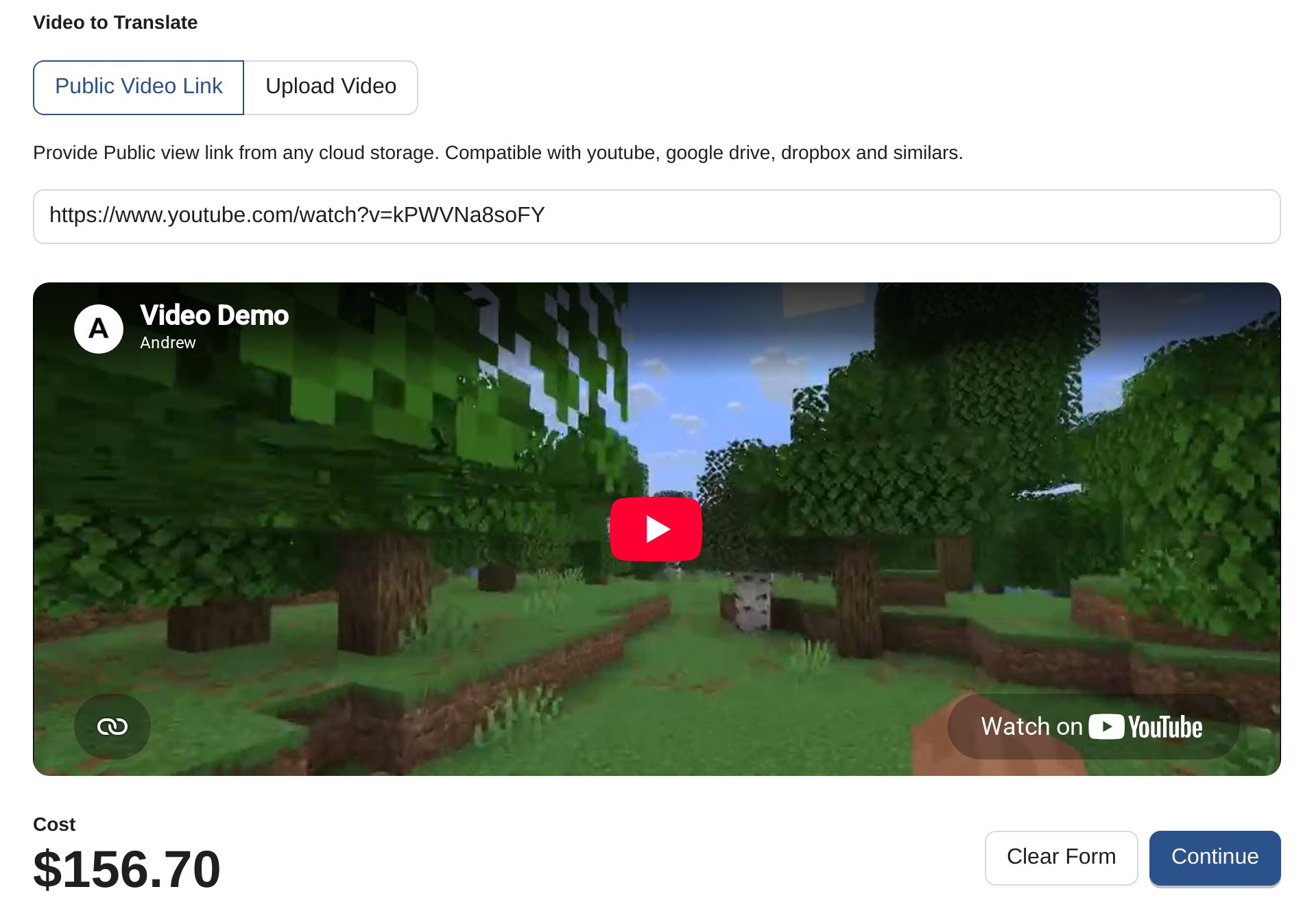
- Fill out Project Form
- Paste your YouTube link, or upload the file
2
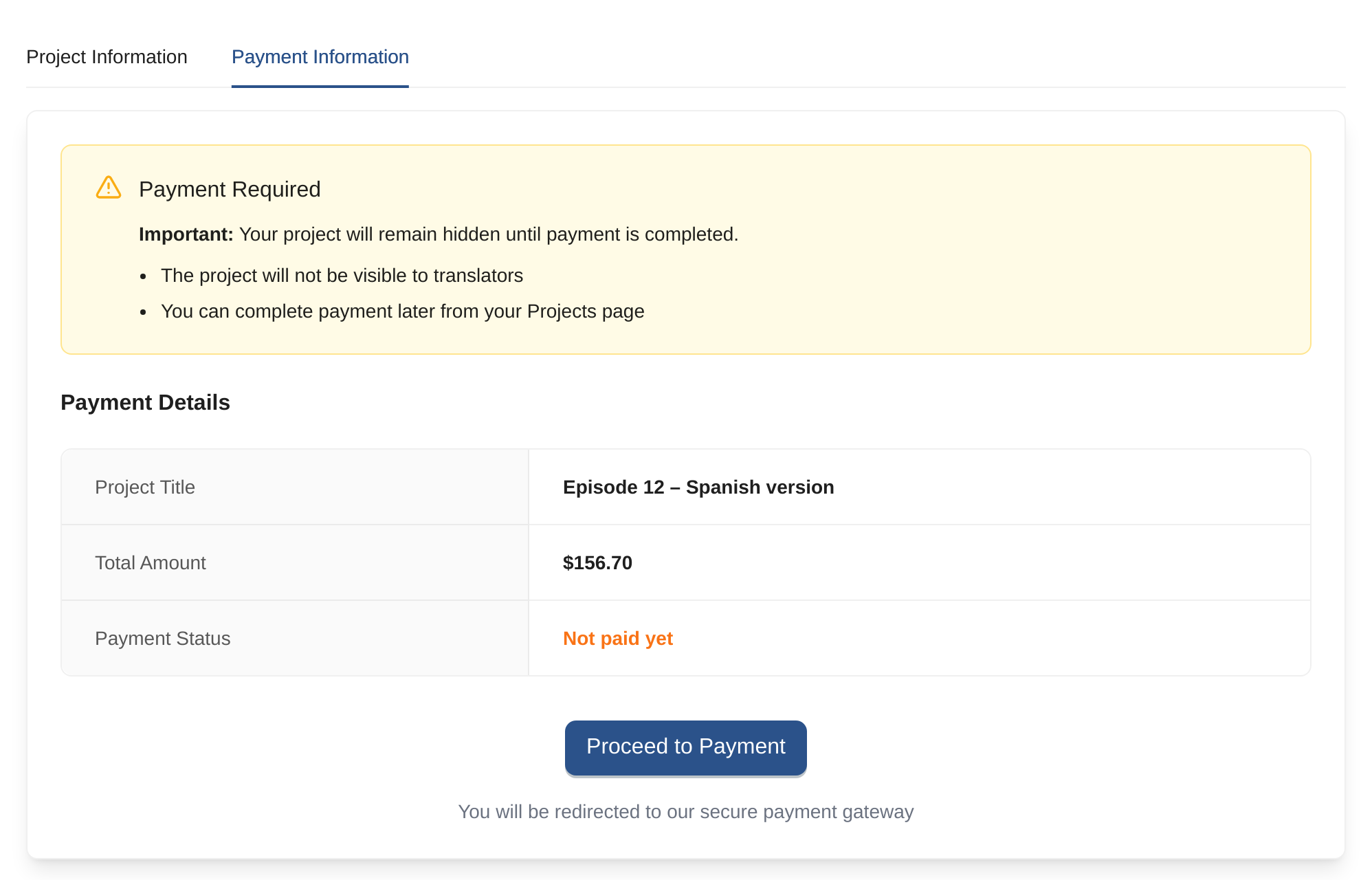
Pay and upload project
- Click Proceed to Payment
- Checkout is secured by Stripe
- Voice Actor: wait 3-5 days
- AI Voice: ready in minutes
B. Get your Spanish track
3
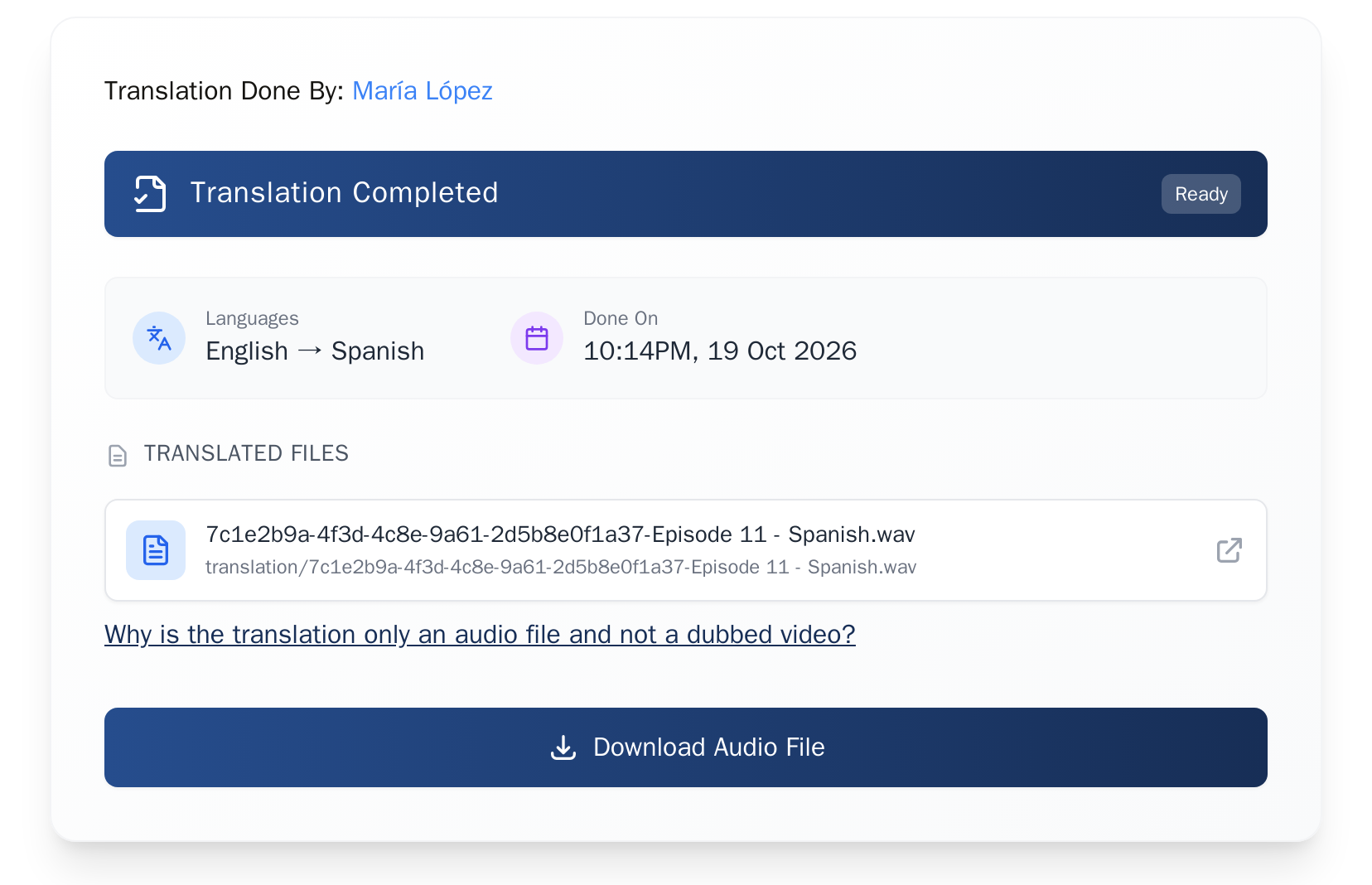
Open your project
- Click Dashboard
- Click your project
- Download Audio File
C. Mix it in your editor
AI Voice? Skip this step. Your track already has your game sound and music in it.
4
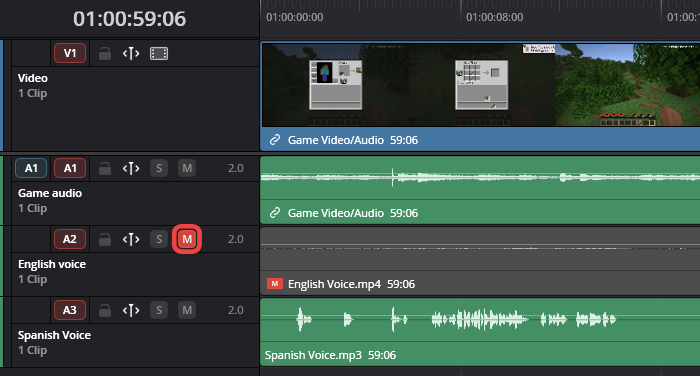
Swap your voice
- Open your video project
- Mute your English voice track
- Drag the Spanish file onto a new audio track
5
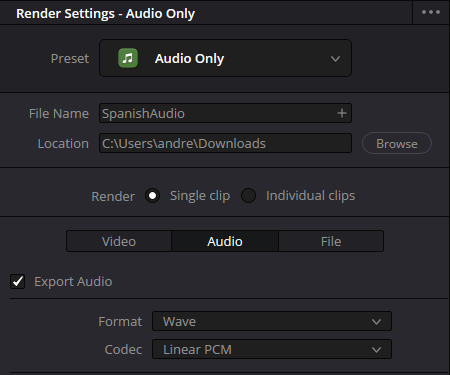
Export the audio
- Export audio only (WAV or MP3)
- Same length as your video
D. Add it to YouTube
6
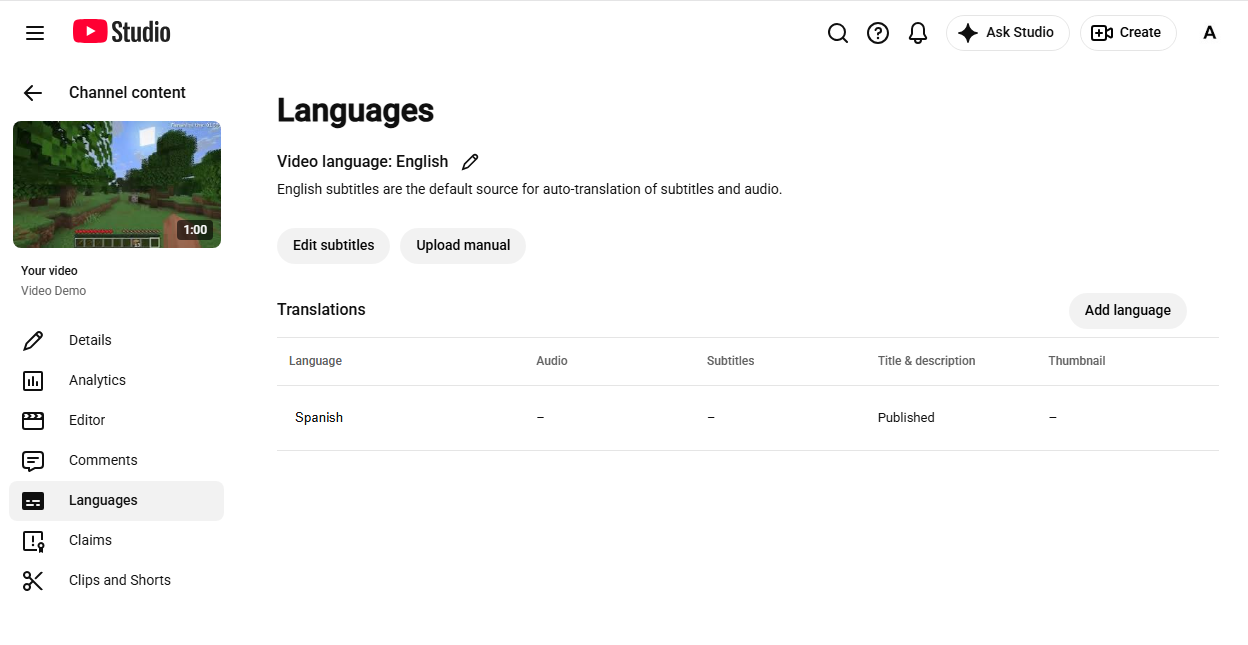
Open Languages
- Go to YouTube Studio
- Content → your video → Languages
7
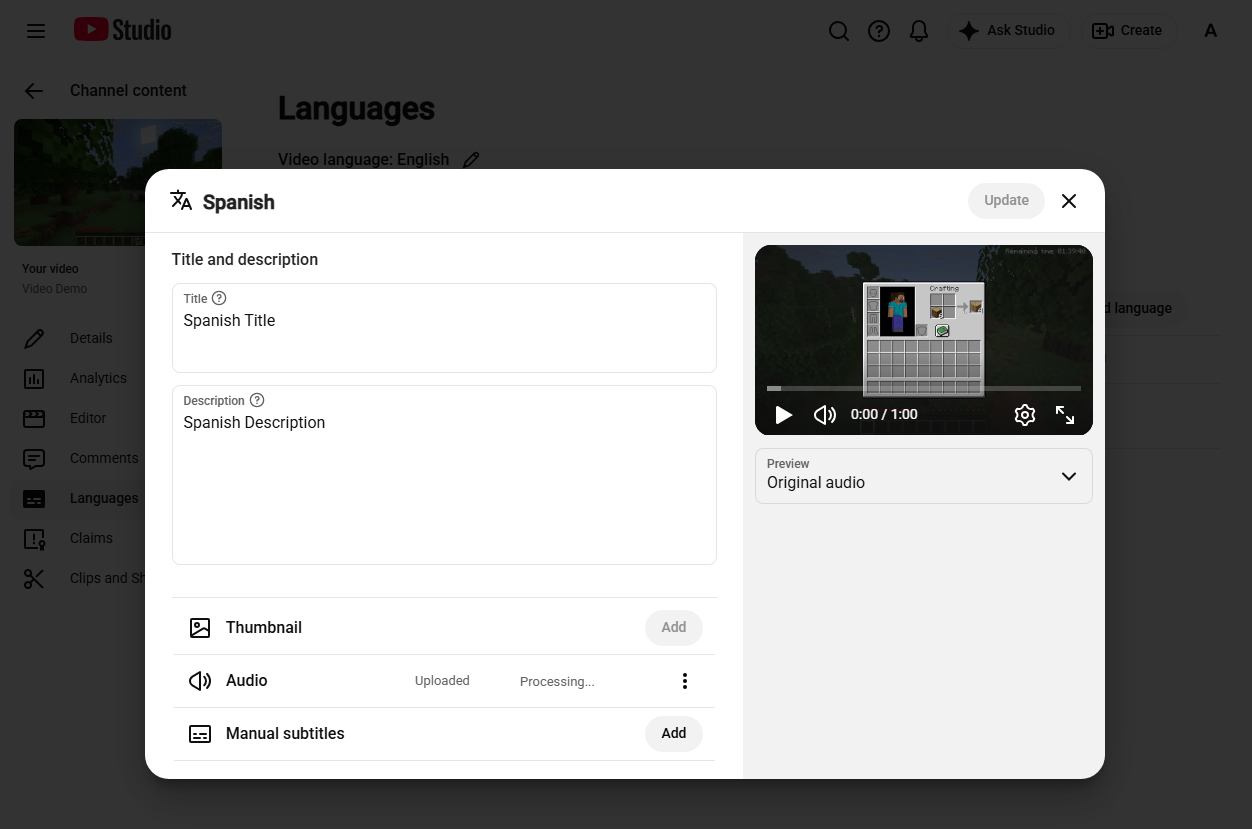
Upload the Spanish audio
- Add language → Spanish
- Under Audio, click Add
- Upload your file, Publish
Pro tip
Add a Spanish title, thumbnail & description
Found in Spanish search
Spanish speakers search in Spanish. A Spanish title and description let YouTube show your video to them.
More clicks
Viewers click titles and thumbnails in their own language. English text makes them scroll past.
Recommended to the right people
More Spanish clicks and watch time tell YouTube to recommend your video to more Spanish speakers.
Looks made for them
Your video looks like it was made in Spanish, not just dubbed.